
PowerShell Script That Automates FULL Database Analysis and Generates Detailed Report that helps in Database Clean-Up and Archival.
Script to Generate Report About Large Tables after Analyzing them and their Dependencies which helps in Archival of Old Data.

All DBAs have been through this one fine and rare day when there are issues not even backup failures you get a meeting invite to an critical call. Once you join it will informed to you there is a 18 TB size of database in an SQL Server instance and now you have to analyze that database and archive or delete the old data.
In this article we will see a PowerShell script which analyze all the tables in a database and prepare a clean HTML report which will have details like :
Size of the largest table.
Constraints on that table.
Foreign Keys on that table.
Triggers on that table.
What is the oldest data in the table.
When was the last update happened.
When was the last table scan happened.
What other objects get affected due to this table.
Usually to fetch all these details we need to spend hours of time and after collecting all the information again we need to spend more time to prepare the analysis report.
This script will save that time. As always this script can be further improved as of now it will provide all the above information.
1. Initialization and Connection Setup :
Code :
Clear-Host
# --- SQL Server Master Analysis Setup ---
Write-Host “--- SQL Server Database Analysis Script ---” -ForegroundColor Cyan
$instance = Read-Host “Enter Instance Name”
$database = Read-Host “Enter Database Name”
$authType = Read-Host “Use Windows Authentication? (y/n)”
if ($authType.ToLower() -eq ‘y’) {
$connString = “Server=$instance;Database=$database;Integrated Security=True;TrustServerCertificate=True;”
} else {
$username = Read-Host “Enter SQL LoginName”
$password = Read-Host “Enter SQL Password” -AsSecureString
$passPtr = [Runtime.InteropServices.Marshal]::SecureStringToBSTR($password)
$plainPass = [Runtime.InteropServices.Marshal]::PtrToStringAuto($passPtr)
$connString = “Server=$instance;Database=$database;User Id=$username;Password=$plainPass;TrustServerCertificate=True;”
}
With this code we request database instance name, database name, how to access the database instance ( Windows Authentication or SQL Login ). After getting these details from the user it will prepare a connection string which used for accessing the database instance.
2. Establishing the Connection and Primary Discovery :
Code :
try {
$connection = New-Object System.Data.SqlClient.SqlConnection($connString)
$connection.Open()
Write-Host “`nConnected to: $database” -ForegroundColor Green
Write-Host “Performing Full Analysis (Tables >= 1 GB)...” -ForegroundColor Yellow
$sqlCmd = @”
SELECT
t.name AS TableName,
SUM(p.row_count) AS [rows],
SUM(p.reserved_page_count) * 8.0 / 1024.0 AS SizeMB,
MAX(ius.last_user_update) AS LastUpdate,
(SELECT Max(v) FROM (VALUES (MAX(ius.last_user_seek)), (MAX(ius.last_user_scan)), (MAX(ius.last_user_lookup))) AS value(v)) AS LastScan
FROM sys.dm_db_partition_stats p
INNER JOIN sys.tables t ON p.object_id = t.object_id
LEFT JOIN sys.dm_db_index_usage_stats ius ON t.object_id = ius.object_id AND ius.database_id = DB_ID()
WHERE t.is_ms_shipped = 0
GROUP BY t.name
HAVING (SUM(p.reserved_page_count) * 8.0 / 1024.0) >= 1024.0
“@
In this section we are establishing the connection with database instance and running a SQL query to fetch tables from the database which are larger than 1 GB ( Note: As I’m doing this in my test environment hence I’m only looking for tables larger than 1 GB size, this section you need to modify based on your requirement on how much large tables in the database you want to analyze ). It calculates the size based on page counts and pulls the last time the table was updated or scanned by a user.
3. Iterating Through Tables and Mapping Dependencies :
Code :
foreach ($row in $largeTables) {
$tName = $row.TableName
Write-Host “ > Analysing : $tName” -ForegroundColor DarkGray
$cmd.CommandText = “SELECT OBJECT_NAME(parent_object_id) FROM sys.foreign_keys WHERE referenced_object_id = OBJECT_ID(’$tName’)”
# ... [Code for Inbound/Outbound FKs] ...
$cmd.CommandText = “SELECT name FROM sys.objects WHERE parent_object_id = OBJECT_ID(’$tName’) AND type IN (’C’, ‘D’)”
# ... [Code for Constraints] ...
# 4. Triggers
$cmd.CommandText = “SELECT name FROM sys.triggers WHERE parent_id = OBJECT_ID(’$tName’)”
In this section we will loop through all the identified large tables and will look for the constraints they have, foreign keys they have and triggers they have.
4. Dependency and Data Age Check :
Code :
$cmd.CommandText = “SELECT referencing_schema_name + ‘.’ + referencing_entity_name as FullName FROM sys.dm_sql_referencing_entities (’dbo.$tName’, ‘OBJECT’)”
# ...
$oldestData = “N/A”
$cmd.CommandText = “SELECT TOP 1 name FROM sys.columns WHERE object_id = OBJECT_ID(’$tName’) AND (name LIKE ‘%date%’ OR name LIKE ‘%time%’ OR name LIKE ‘%created%’ OR name LIKE ‘%modified%’) ORDER BY column_id ASC”
$dateCol = $cmd.ExecuteScalar()
if ($dateCol) {
$cmd.CommandText = “SELECT CONVERT(VARCHAR, MIN([$dateCol]), 23) FROM [$tName]”
try { $oldestData = $cmd.ExecuteScalar() } catch { $oldestData = “Error” }
}
In this section we are trying to find out views, Stored Procedures that reference this table. Also attempts to "guess" which column contains timestamp data (looking for names like "created" or "date") and queries the minimum value to tell you how old the oldest record in that table is.
5. Data Normalization and Object Creation :
Code :
$lastUpd = if ($row.LastUpdate -is [DBNull]) { $null } else { [DateTime]$row.LastUpdate }
# ... calculation of days ago ...
# 8. Collect All Data
$fullReport += [PSCustomObject]@{
Table = $tName
SizeMB = [Math]::Round($row.SizeMB, 2)
# ... [Mapping all variables to the object] ...
}
This section of the script cleans up the raw SQL data collected till now and it converts the null database values into readable dates and calculates “Days Ago” metrics. Finally, it packages all the information for that specific table into a PSCustomObject, which is added to a collection called $fullReport.
6. Exporting to HTML :
Code :
if ($fullReport.Count -gt 0) {
$fullReport | Format-Table -AutoSize
$saveHtml = Read-Host “`nData collection Completed. Generate HTML report?”
if ($saveHtml.ToLower() -eq ‘y’) {
# ... HTML Styling and Conversion ...
$htmlContent = $htmlContent -replace “<br/>”, “<br/>”
$htmlContent | Out-File $filePath
}
}
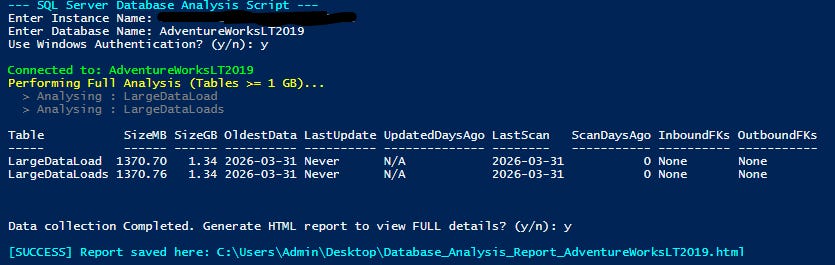
This section of the code is straight forward where the data collected and formatted so far we are exporting to HTML. This section displays the partial output it generated in the PowerShell console and it will give option to user whether to create a HTML report or not.
Recommendation: To view the FULL details it analyzed and collected please generate HTML report.
It uses CSS for styling and performs a string replacement to ensure that the line breaks for multiple foreign keys or triggers render correctly in the web browser.
7. Error Handling and Cleanup :
Code :
} catch {
Write-Host “`n[ERROR] Analysis failed: $($_.Exception.Message)” -ForegroundColor Red
} finally {
if ($connection.State -eq ‘Open’) { $connection.Close() }
}
This part of the code is self explanatory the try-catch-finally block ensures the script is resilient. If the connection fails or a query crashes, it reports the error in red. Most importantly, the finally block ensures that the connection to the SQL Server is closed regardless of whether the script succeeded or failed, preventing "orphan" connections.
Below is the sample execution screenshots:
Sample HTML Report script will generate:

Hope this script helps and saves your time while trying to archive old data from a large database.
Let me know in comments section below how you analyze the database in your environment when you have to archive or delete data from a large database.
Thanks VV!!